In the “E-Designer” tab, you have the option of simulating the energy system.
First click on ‘Add planning’. You have now created your first design and can rename it.

To add the placed PV modules to the planning, you can now add roof areas to it. To do this, click on “Add roof” and then select “Add all roofs”.
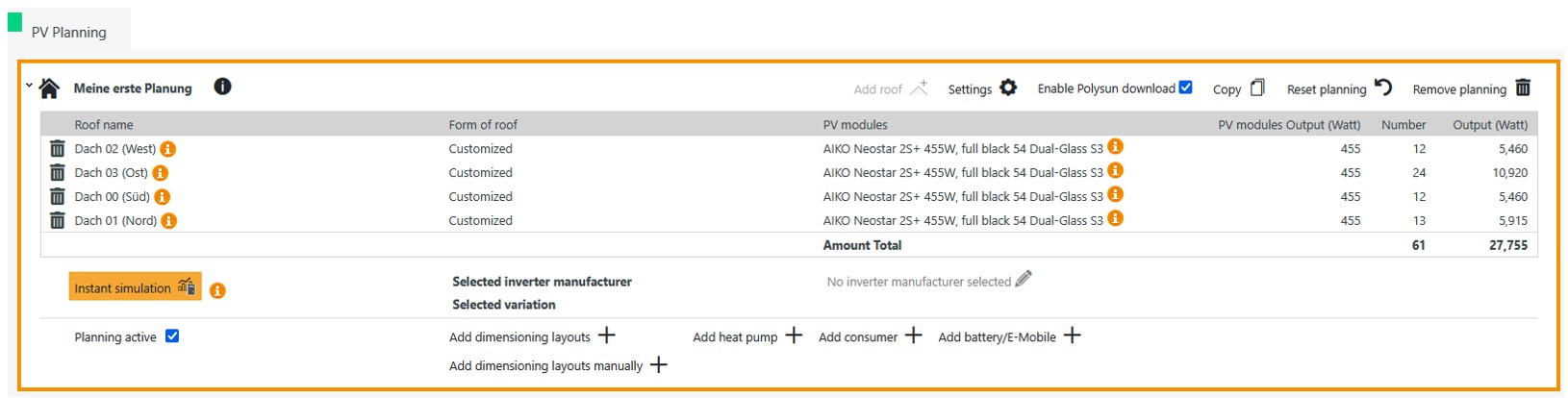
In the next step, the planning is supplemented with a design for the inverter. It is also possible to integrate a consumer, a heat pump, a battery or an e-mobile into the planning. Information on the inverter design, the consumer, the heat pump and the battery / e-mobile can be found in the respective chapters. If you also use Polysun Designer or Standard in addition to Polysun SPT, you can export the energy system there. You can find more information on this in the chapter “Using Polysun SPT and Polysun Designer/Standard together“.
Once you have selected everything, click on “Simulate”. After a certain simulation time, the results will be available to you.
You can now create a report directly using the “Project report” function in the top menu ribbon.
You can also analyse the results via the left-hand menu bar. Here you have the following options for displaying the results:
- Yield values
- Energy balance per year
- Graph output
- Yield losses
- Horizon
- Graphs
If you would like to further optimise your planning at this point, you can also go back to the ‘Position’ tab and change the placement of the modules there. However, this may change the number of modules, which is why the inverter design must be adjusted.
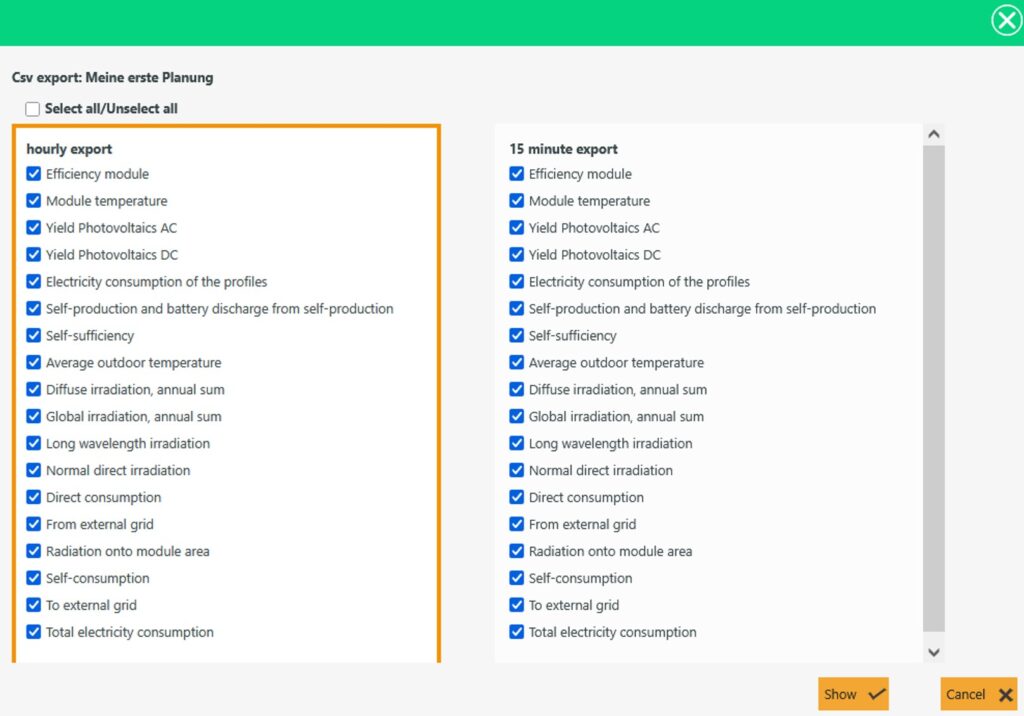
It is also possible to export the results as hourly or 15-minute values in a CSV file. To do this, click on “CSV export”.

A new window will then appear listing the possible export data. You have the option of selecting or deselecting everything by ticking the “Select all/Unselect all” box. Once you have selected the data, you can click on “Show”. This will export the data to a CSV file. A column is created in the file for each selected data column.