Streamlining Solar Roof Design with Polysun SPT
Designing an efficient solar roof is a critical step in maximizing energy output and ensuring structural compatibility. Polysun SPT offers a powerful roof editor that simplifies the process of PV system design, enabling users to create tailored solutions for a variety of building types. With support for eight distinct roof shapes—ranging from Ridge and Hip roofs to fully Customized and Elevated options—Polysun SPT provides flexibility to meet diverse project needs. By configuring key parameters such as roof slope, system alignment, snow load, and product type, users can optimize their designs for performance and durability. Additionally, advanced features like satellite image tracing and 2D drawing imports streamline the creation of complex roof geometries, while the “Manage Roofs” function enhances workflow efficiency for projects with multiple roofs. This article explores how Polysun SPT empowers users to design solar roofs with precision and ease.
Configuring Roof Shapes and Parameters in Polysun SPT
You can choose from eight different roof shapes in the roof editor:
- Ridge roof
- Hip roof
- Half-Hipped roof
- Pavilion roof
- Shed roof
- Flat roof (Elevation)
- Customized
- Custom (Elev.)
- Façade
First complete the input options in the roof shape. These include:
- Building details
- Slope of roof
- Title
- Roofing
- Product type (only applies to the roof types “Flat roof (Elevation)” and “Custom (Elevation)”)
- System alignment
- Snow load
- Peak velocity pressure
The “Product type” input option is used to select the elevation directions. You can choose between a south elevation or an east/west elevation.
The “Customized” and “Custom(Elev.)” roof shapes can be configured flexibly, for example by tracing a satellite image or importing a 2D drawing. If you have selected a roof shape of the “Customized” type, the “Draw / Import” option appears there. You can find out more about this in the Draw / Import chapter.
You will find several videos on modelling different roof shapes in the following chapter “How to Draw”.
Function – Manage roofs
If you have several roofs, you can use the “Manage roofs” function to easily move from one roof to another, allowing you to select the other roofs.
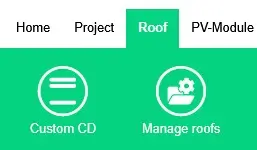
In the next step, you can create a new roof and name it.
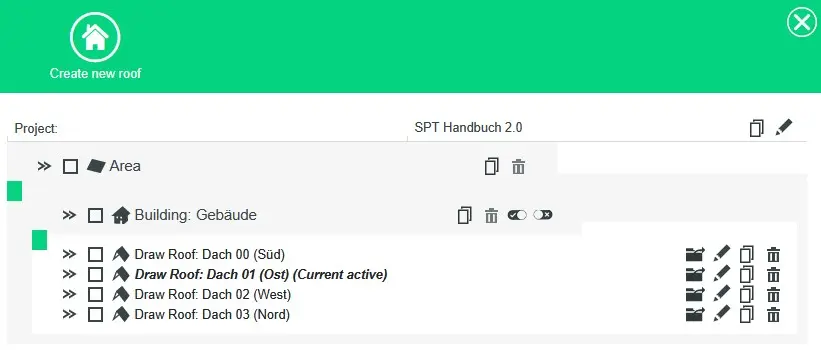
Click on the folder icon next to the new roof to open it.
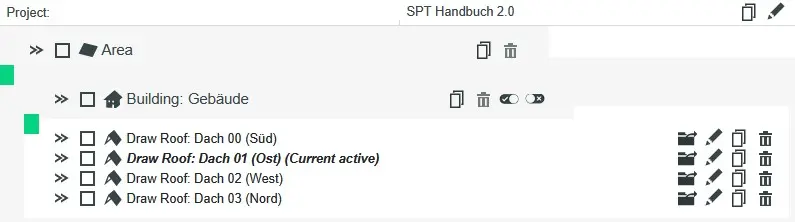
The roof is now open and you can start editing the roof as usual. If you click on “Draw / Import”, you now also have the option of referring to the first roof. The first roof is represented by a dark grey outline. If you draw in an auxiliary line, the point snap automatically captures the line and the corners.
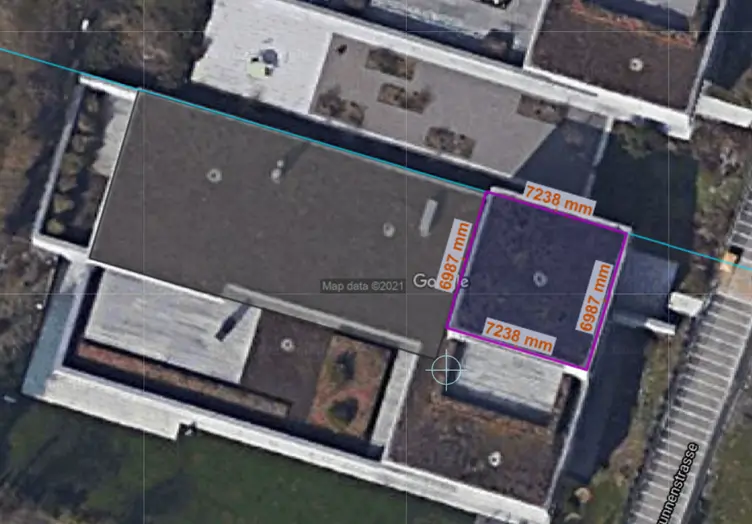
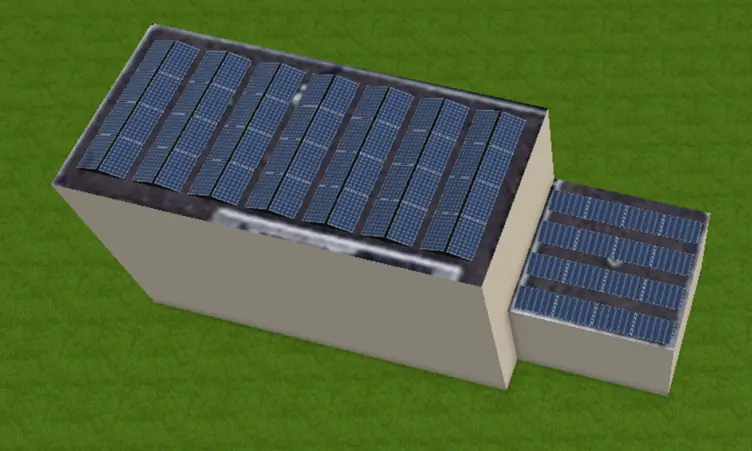
Now go to the “Position” tab. Select “3D scene Total”. The two roofs will then appear next to each other.