PV planning and heat pump system planning in Polysun
PV planning with 3D yield forecasting can be carried out in Polysun SPT. The variants for optimal heat supply can then be simulated in Polysun Designer. Polysun SPT directly generates a project file for Polysun Designer, which can be used to plan the heat pump system or the extended energy system.
There are various ways to use Polysun SPT together with Polysun Designer:
There are various options for using Polysun SPT together with Polysun Designer or Standard:
Variant 1 – Export project file from SPT
In the first variant, a project file is created in Polysun SPT. This can then be opened and customised in Polysun Designer or Standard. To do this, proceed as follows:
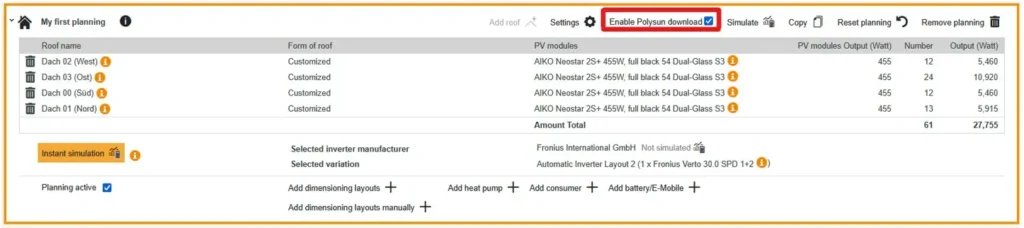
- Go to the “E-Designer” tab and open the PV planning.
- Here you will find the “Enable Polysun download” field. Select this and simulate the planning.
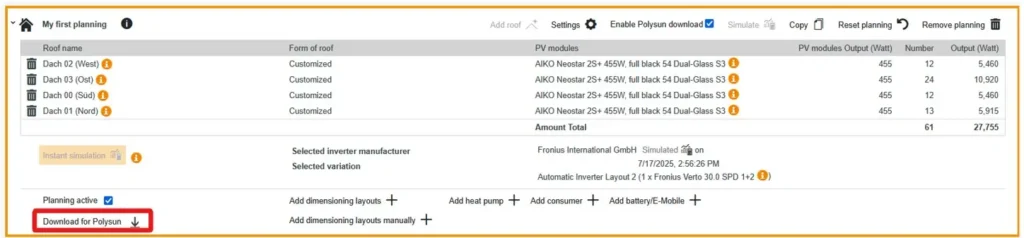
- As soon as you have simulated the planning, the “Download for Polysun” field appears below the planning. Click on this field.
- Open the project file in Polysun Designer or Standard. Your project can then be edited there.
Variant 2 – CSV export of the photovoltaic yield
In the third variant, the hourly (or 15-minute) yield values are exported from Polysun SPT and imported into Polysun Designer/Standard.
You can do this as follows:
- First go to Polysun SPT. There you can output hourly or 15-minute values in the “E-Designer” tab via “CSV Export”. First click on “CSV Export”.

- A window will open. First click on “Deselect all” (1.). Next, select “Yield photovoltaic AC (Ertrag Photovoltaik AC)” (2.) and finally click on “Show” (3.) at the bottom right.

- You will now receive an Excel table. In this file, the values are given in kWh. As the data in Polysun Desktop is stored as Wh values, all yield values (column with the name “Photovoltaic yield [AC kWh]”) must be multiplied by 1000. In addition, there must be no decimal places in Excel.
Once the values have been adjusted, we switch to Polysun Desktop or Standard.
- Open the photovoltaic component in Polysun Designer or Standard.
- Select “Calculation method” and click on “Use profile”.
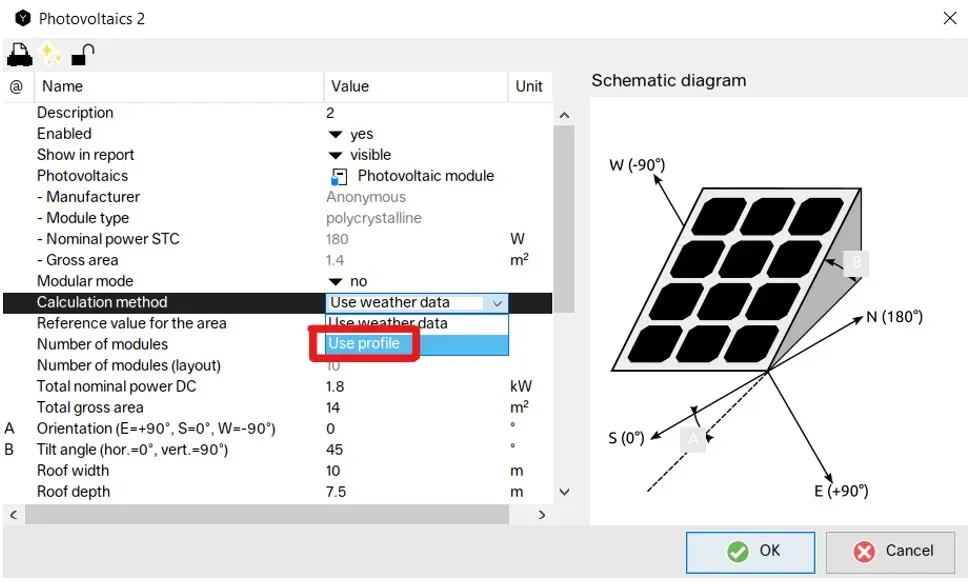
- The component should now look like this:

- Now click on “PV generation profile…”.
- In the next window, select the row that 1. has AC values and 2. uses hourly values. This is important as the number of rows in the Excel file differs depending on whether hourly values or 15-minute values are selected.

- Next, copy the selected line. To do this, right-click on the line. Double-click on the line to open the following small window:
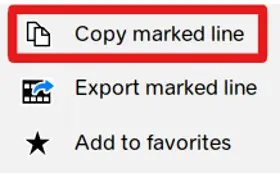
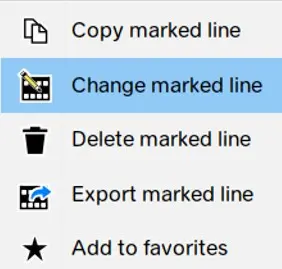
- If you double-click on the line again, another window appears. Select “Change selected line”. The line turns red. Click on the field in which the file is located (in the “File name” column). Select “Open file” in the small window:
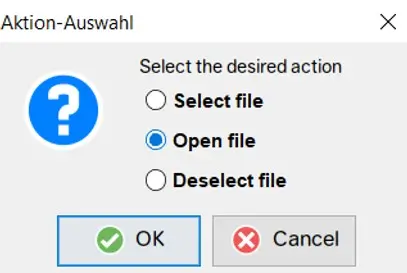
- You will now be taken to the currently stored profile file of the photovoltaic component. Select all values in the “PV power” column and replace the values that you previously changed from the Polysun SPT export file.
- Save and close the file. Then click on “OK” in Polysun Designer and the values will be saved.
Variant 3 – Customise photovoltaic components in Polysun Designer/Standard
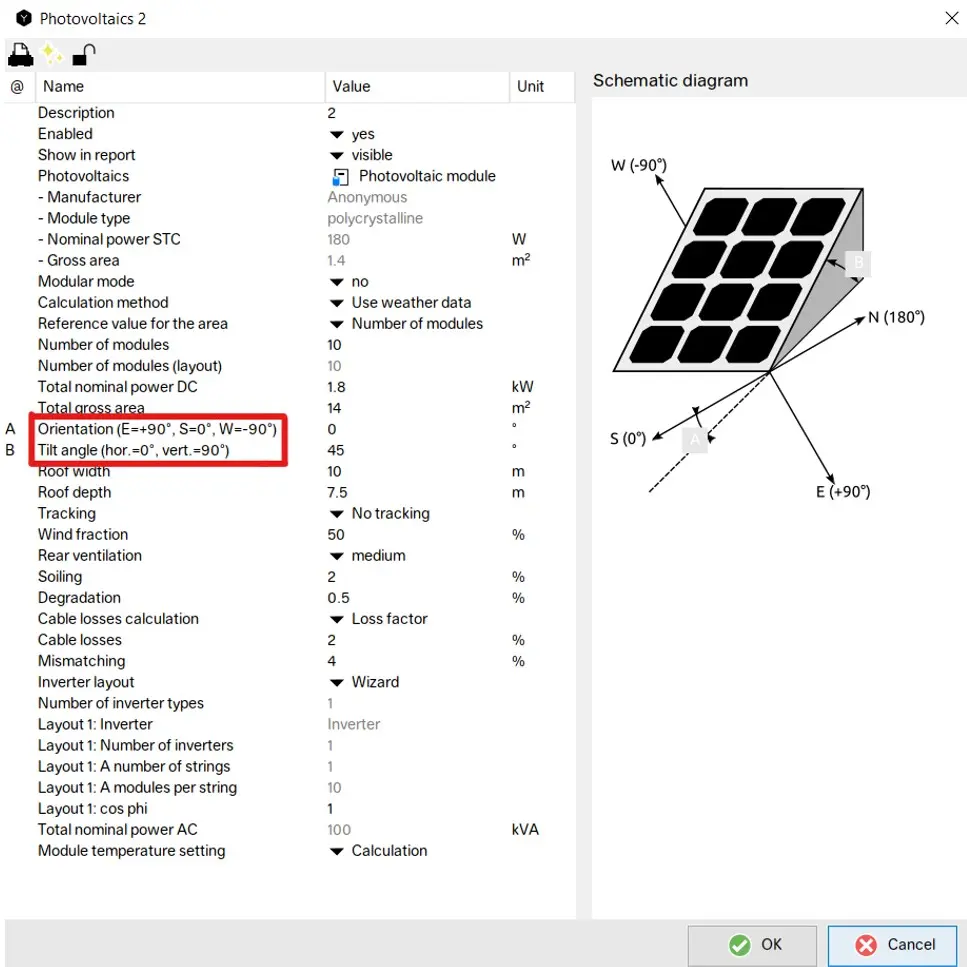
In the second variant, the photovoltaic component in Polysun Designer or Standard is customised according to the Polysun SPT values. This means that you must configure the orientation of the modules, the number of modules per orientation, and the inverter.
Please note the following:
One photovoltaic component is required for each aligned roof surface. If there is an east/west roof, one component is added for the east roof and another for the west roof. The same applies to any dormer with a different angle of attack.