Causes and solutions for startup and connection problems
Initial situation
General information on switching from a device-based licensing system to a user-based licensing system can be found here.
The Polysun Desktop App uses web services necessary for operation to ensure that it is always up to date and to enable license access. These are summarized below:
- Access to velasolaris.com to view the help documents in the app and contact support chat
- Access to location weather data and map information for selecting the location.
- Access to the user portal for logging into the app.
These web services may not be available or may only be partially available for the Polysun Desktop App on your company network. Network access may also be interrupted due to operational disruptions or other problems.
Here you will find instructions for your IT administrator to ensure you have smooth access. Below is a list of possible problems and how to solve them.
Possible problems and solutions
Below you will find help for possible problems:
One of the following two windows appears at startup. These messages appear when there are general problems with the network or when the login window for logging in with your username and password in Polysun cannot be opened. This can have various causes.
Possible cause: You have no or unstable Internet connection
If your network connection is missing, unstable (e.g., on a train), or parts of the Internet are not accessible from your network, Polysun will behave as follows:

- If there is no internet connection when you log in to the desktop app for the first time, you will see the message above. Please try again once you have an internet connection.
- If the internet/network connection is lost again after you have successfully logged in, you can work offline for two hours before you need to reconnect to the network. After two hours without a network connection, you will be automatically logged out and will need to reconnect in order to continue working.
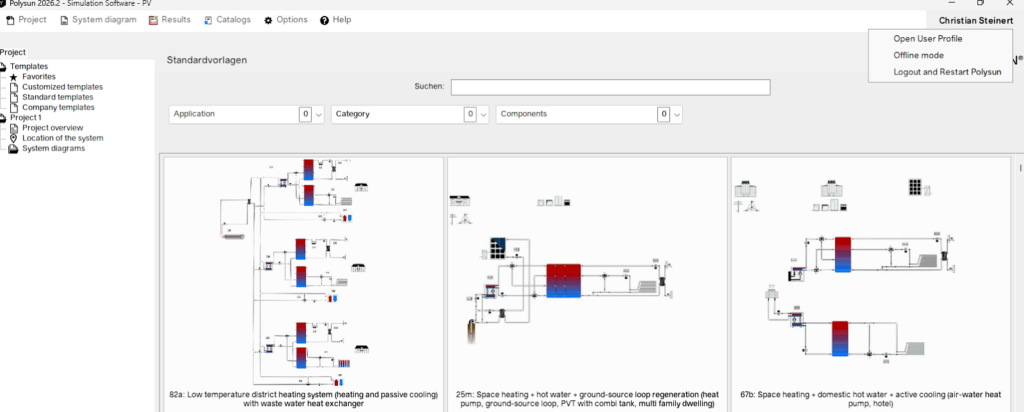
- If you plan to work offline for a longer period of time, you can switch Polysun to offline mode after starting it up, which will allow you to work offline for 24 hours. To do this, after starting Polysun, click on your name in the upper right corner of the main window and then select “Offline Mode.” Please note that you still need an Internet connection to activate offline mode.
- You have offline access to the Polysun app for two hours, but the weather data is not loading via the interface/web service because you have no network connection or an unstable connection. In this case, use the Meteonorm offline weather data version in 6, which is always available, or in version 7.2, which you can download to your desktop device during installation. However, the online weather data available via the web service interface is the most up-to-date information. The version of the selected weather data has an impact on the temperatures used in the project and thus also on the simulation results.
Possible cause: Polysun crashed before you logged in to the license system, or you canceled the login

If this window appears when you open Polsun, proceed as follows:
- Try again with the “Use user-based licensing” option if you suspect a network problem or an unstable Internet connection.
- Select “Use external browser to login” as a third attempt. This opens the login window in a separate browser to avoid possible in-app problems. This is particularly helpful if Polysun crashes on startup instead of displaying a dialog for logging in to the user portal.
- Select “Reset the login data on this machine”: This allows you to start the login process again if you had successfully logged in but Polysun still did not start correctly, or if error messages were displayed indicating that Polysun was unable to successfully delete certain directories on your computer.
If none of the above attempts result in the login window being displayed, one of the problems listed below may be occurring.
The firewall is blocking communication with the required web services and preventing Polysun from running properly
Ask your IT administrator to enable the ports and IP addresses as described in the guide for IT administrators. beschrieben freizuschalten. If your IT department also uses a proxy, ask for the proxy information (see below).
Your network requires proxy information
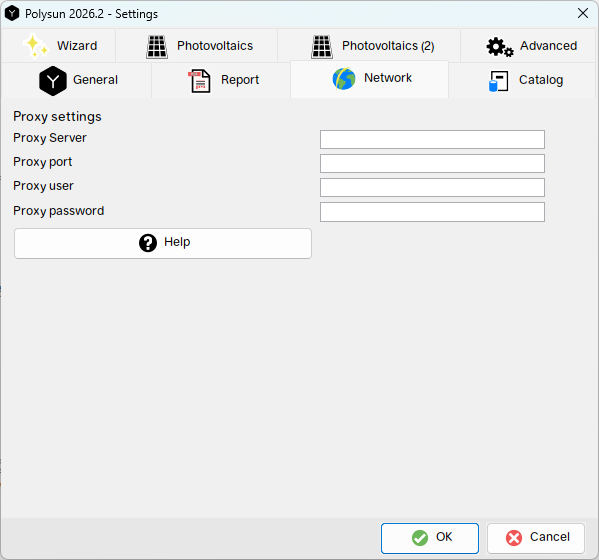
If you use a proxy for security on your network, you must enter this connection data when starting Polysun. To do this, click on “Configure proxy” when starting Polysun and then enter the proxy information. Then press “Reconnect” or “Start Polysun” – depending on which of the two dialogs you used to call up the proxy configuration:
After Polysun has started, you can change the proxy information within Polysun under ‘Options’->‘Settings’->‘Network’. You can obtain the proxy information from your IT administrator.